Customer Interaction
Contact Portfolios
Portfolios are groupings of contacts that allow you to segment, organize, and automatically assign contacts to specific agents or teams. This functionality streamlines database management, optimizes conversation distribution, and improves service efficiency.
Key Features
- Unique assignment: each contact can belong to only one portfolio.
- No limits: there is no restriction on the number of portfolios or the number of contacts each can contain.
- Role-based management:
- Administrators: manage all portfolios in the account.
- Agents: can only manage and view the portfolios assigned to them.
Use Cases
- Segmentation: classify contacts by criteria such as region, customer type, or service level.
- Automatic assignment: route incoming conversations directly to designated agents.
- Team management: distribute groups of contacts among different teams or areas.
- Load distribution: enable supervision, balancing, and report generation by agent or portfolio.
Assign Contacts to a Portfolio
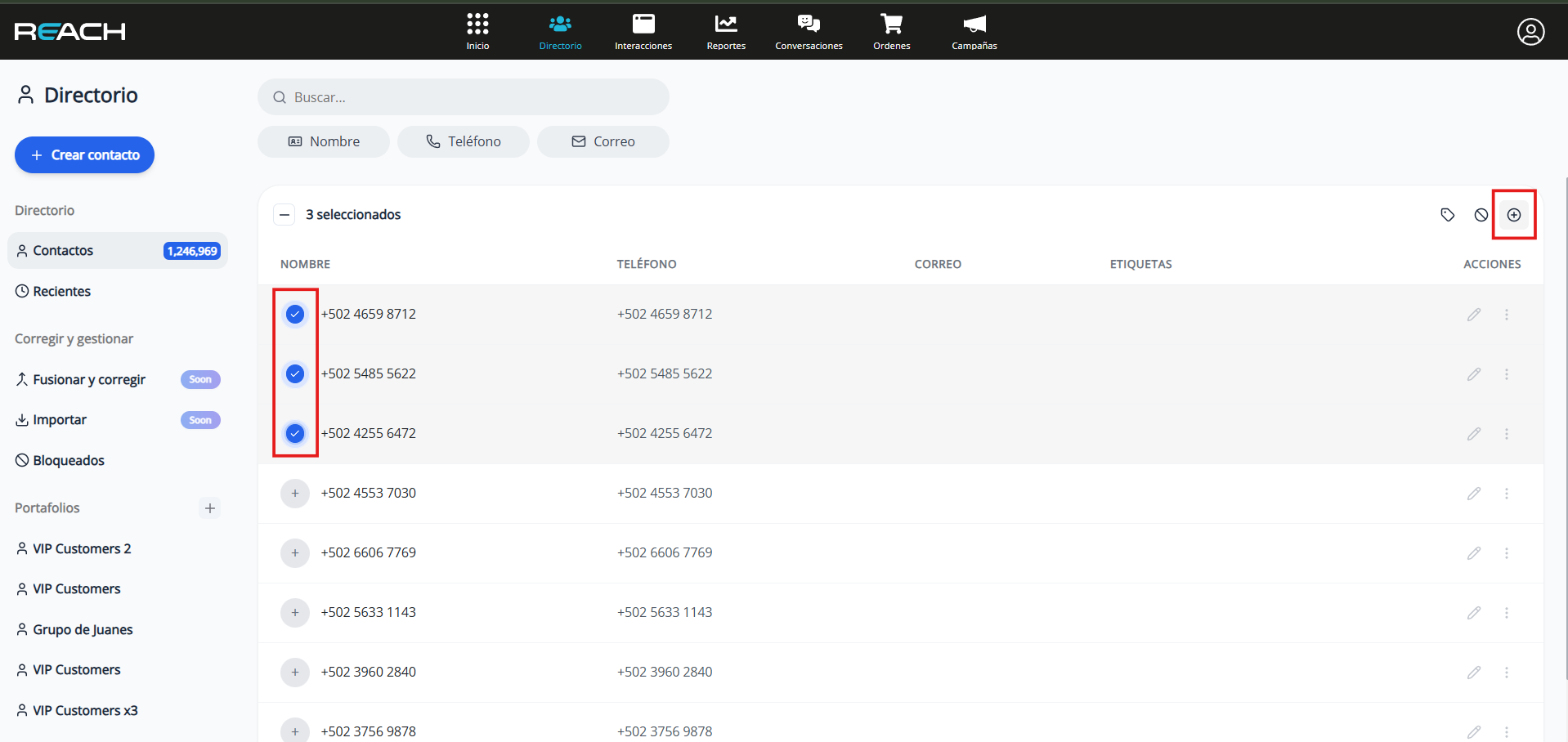
Option 1: From the main contact list
- Select one or more contacts using the checkboxes.
- Click the “+” (Add) button on the toolbar.
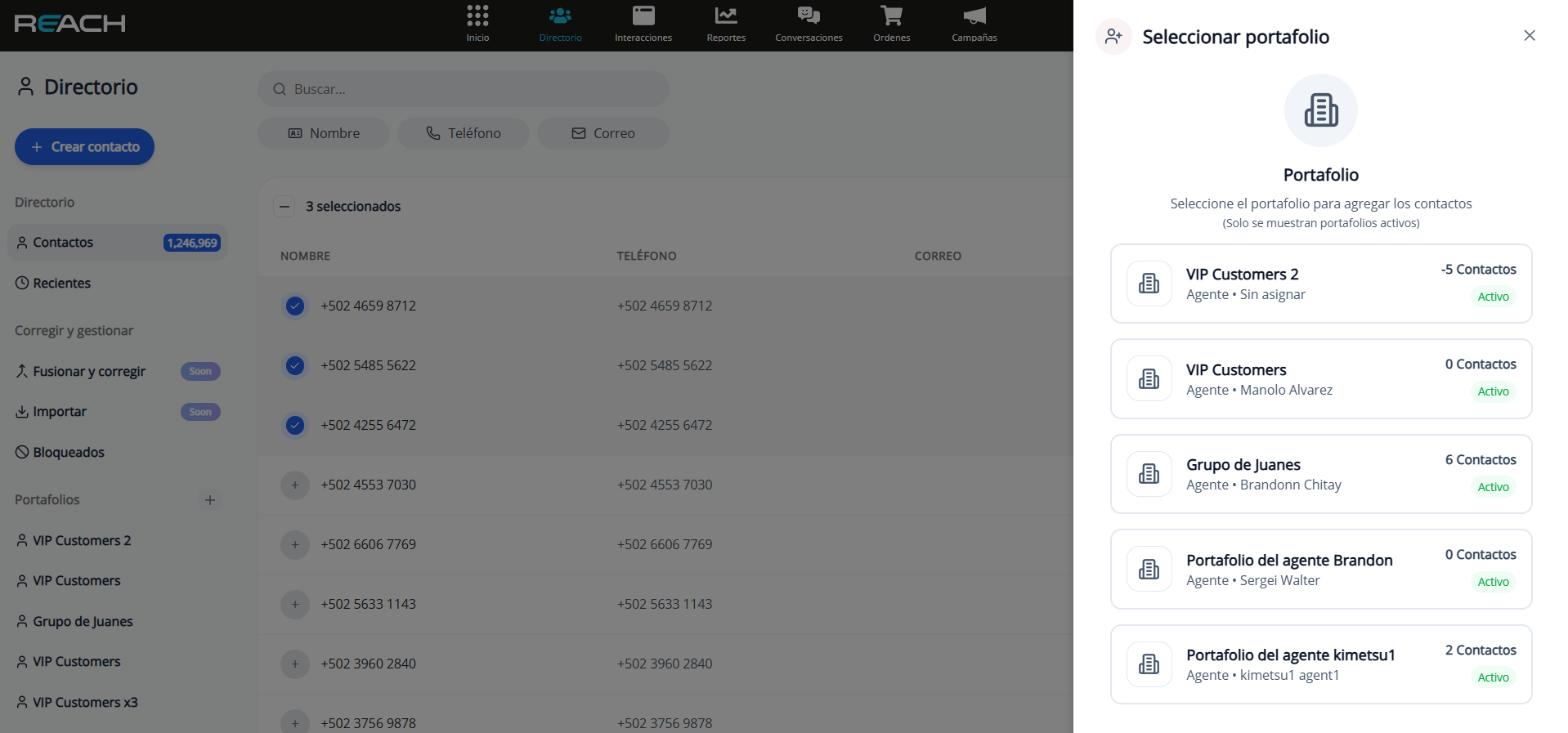
- Choose the destination portfolio.
- Review the information and confirm the assignment.
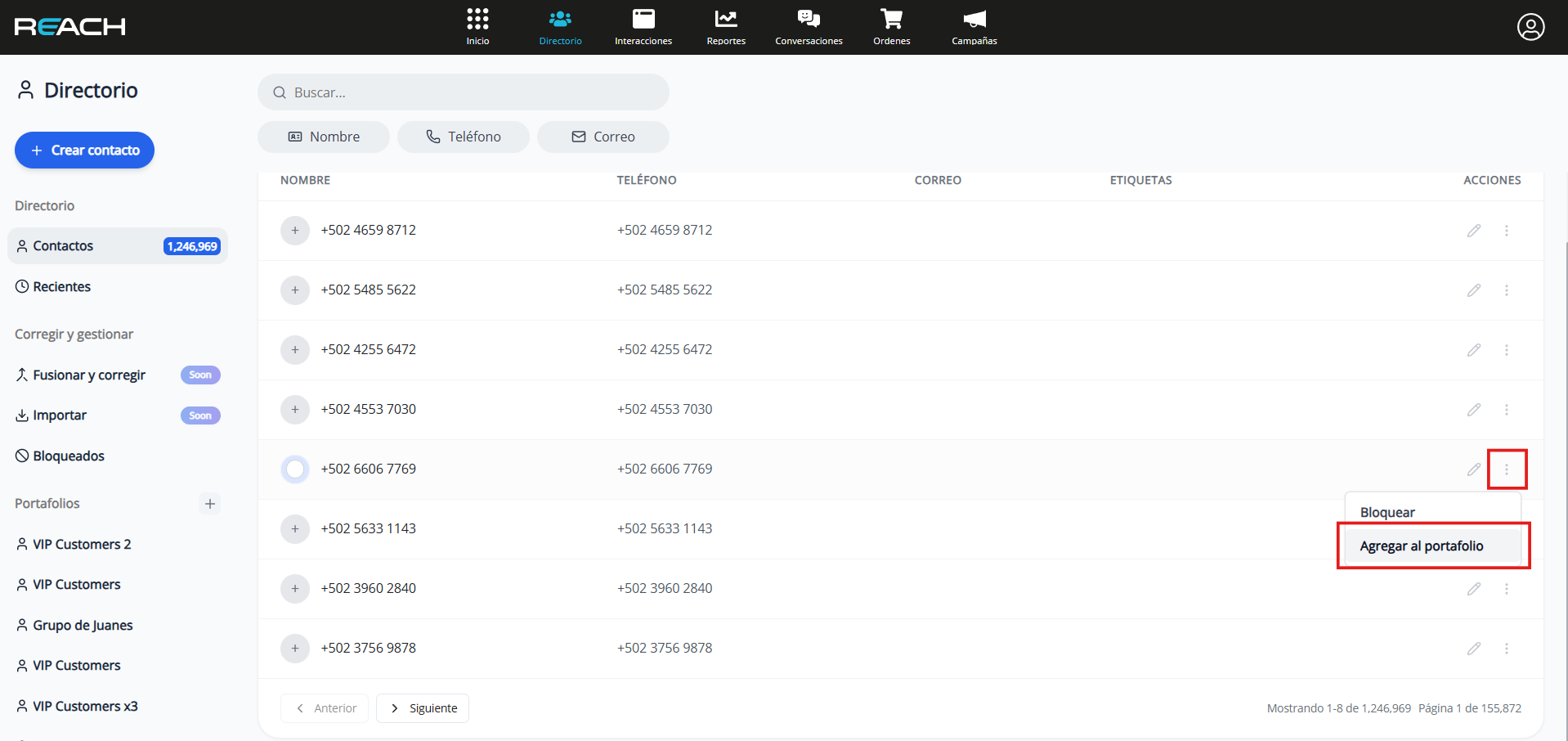
Option 2: From an individual contact
- Click the options menu (⋮) next to the contact.
- Select “Add to portfolio”.
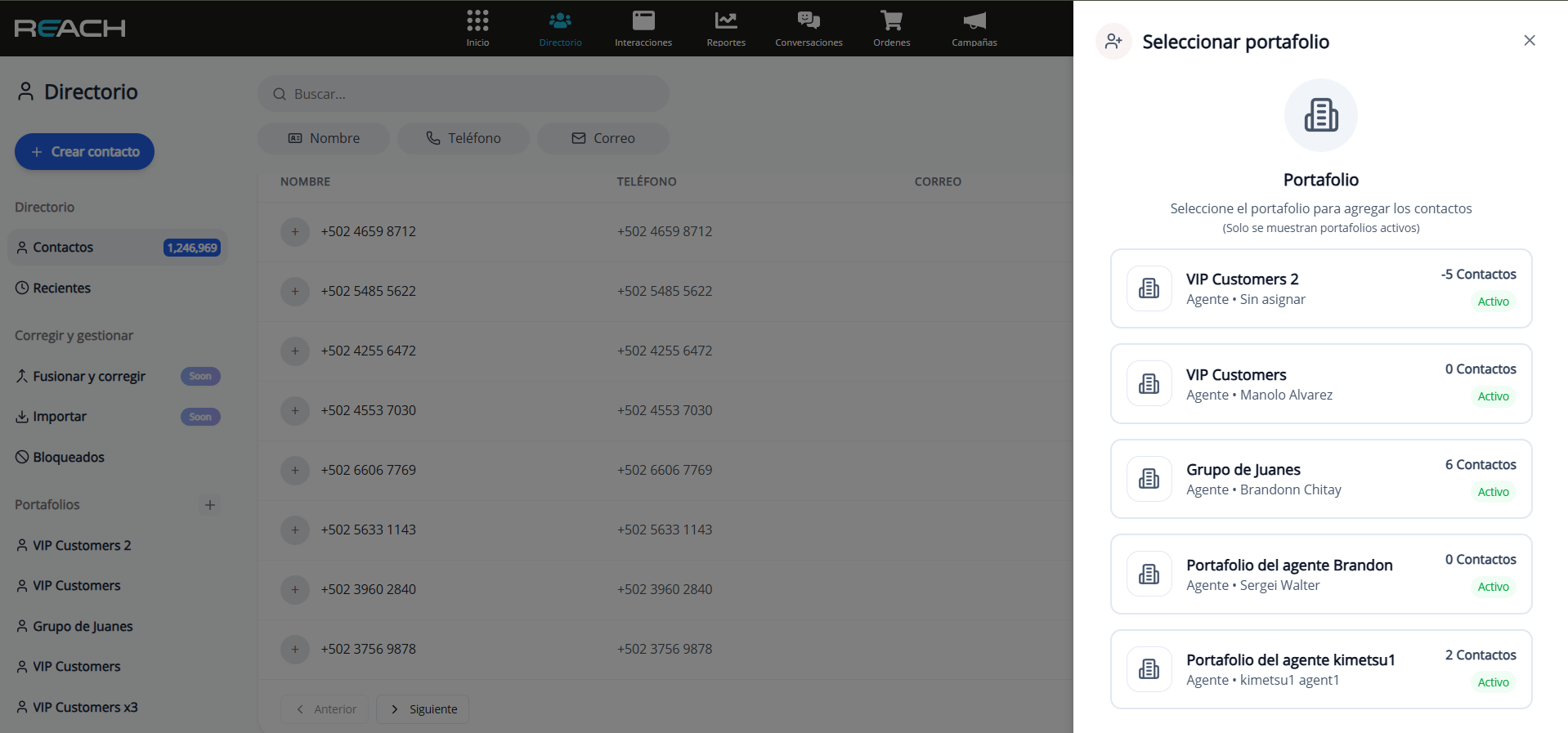
- Choose the destination portfolio.
- Confirm the assignment.
Contacts Already Assigned to Another Portfolio
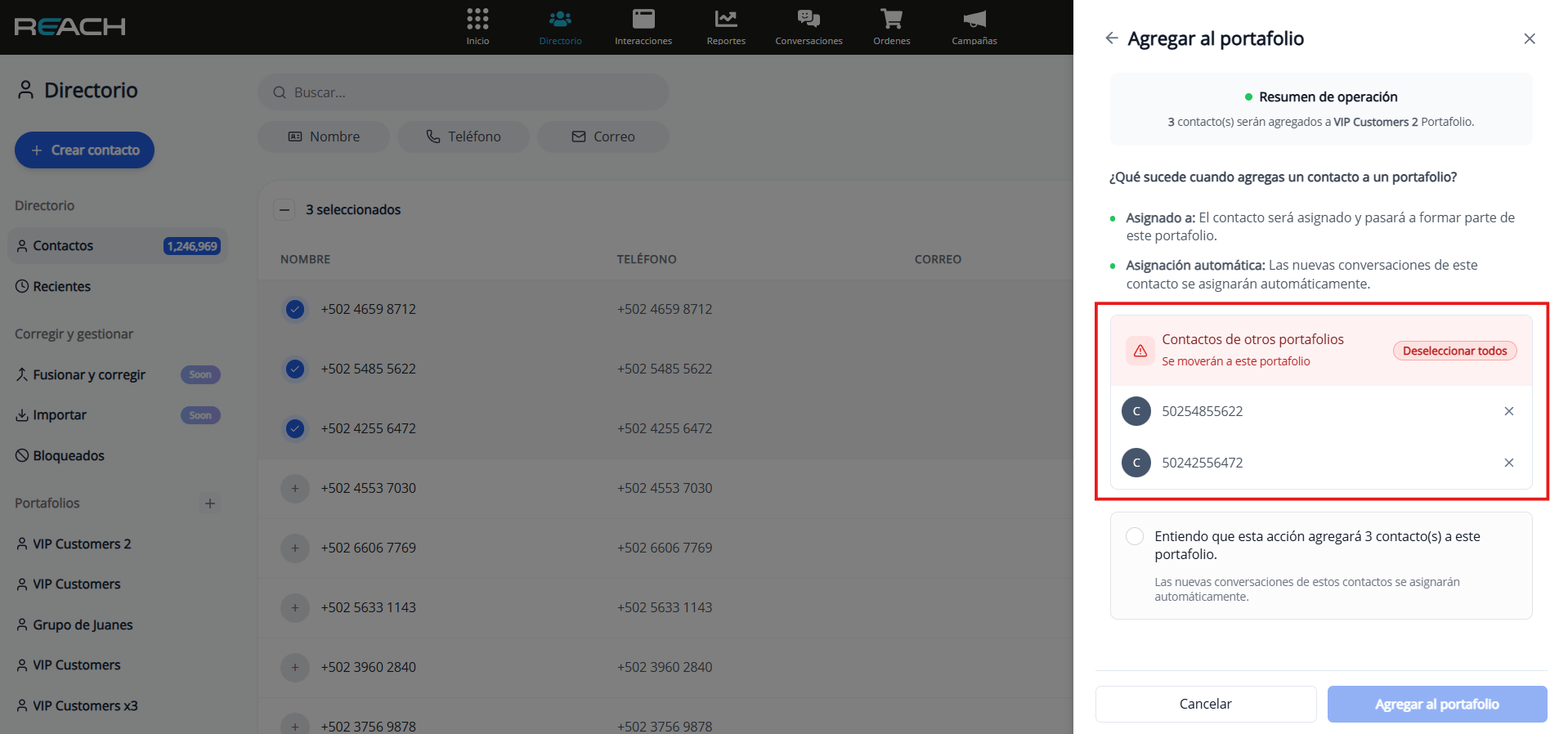
If you try to assign a contact that already belongs to another portfolio:
- The system will display a warning.
- You will be able to identify which contacts are linked to other portfolios.
- You’ll have the option to move them to the new portfolio or keep them in the current one.
Remove Contacts from a Portfolio
Steps to remove:
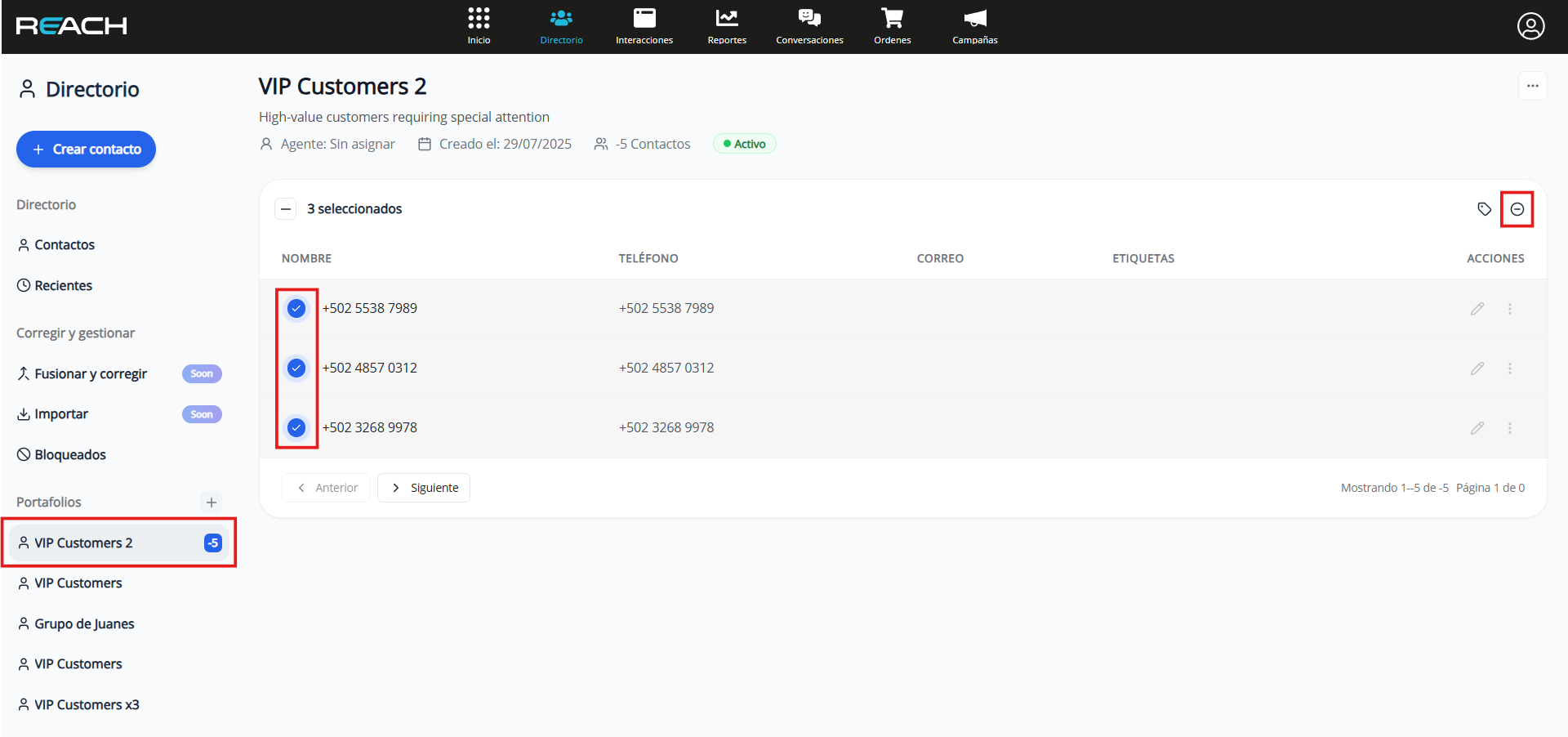
- Go to the portfolio from the side menu.
- Select the contacts you want to remove.
- Click the “-” (Remove) button on the toolbar.
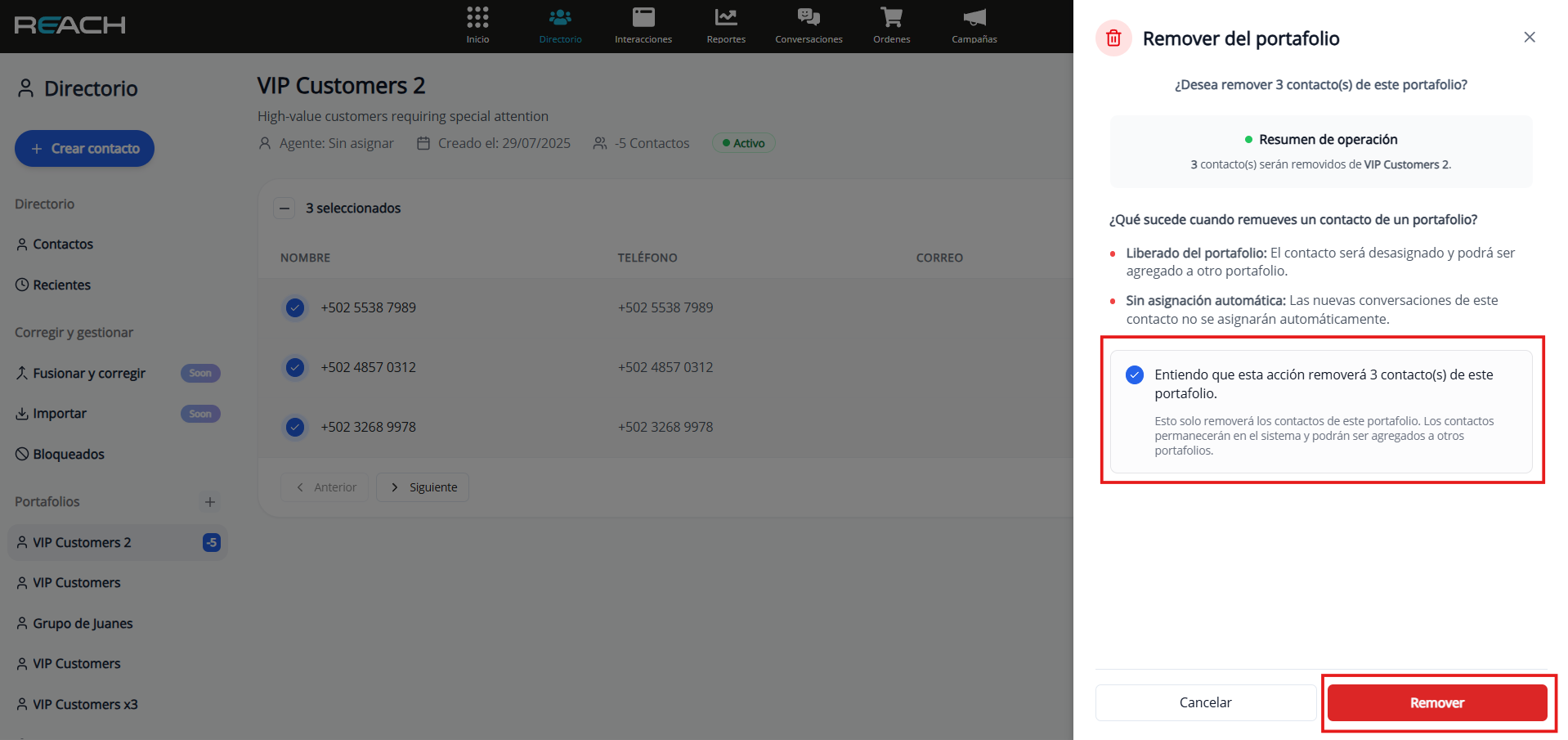
- Confirm the action.
Portfolio Status
- Active: available and visible for assignment and management.
- Inactive: disabled and does not appear in assignment options.
Permissions and Access
Administrator
- Views and manages all portfolios in the account.
- Can create, edit, and delete any portfolio.
- Can assign contacts to any portfolio.
Agent
- Views only the portfolios assigned to them.
- Can only edit their own portfolios.
- Assigns contacts exclusively within their portfolios.
Assignment Conflicts
Conflicts occur when you try to assign contacts that already belong to another portfolio.
How they are managed:
- Real-time verification: when selecting the destination portfolio, the system checks the status of each contact.
- Automatic comparison: validates whether the contact already has a portfolio assigned.
- Smart filtering: separates conflicting contacts from those that can be assigned without issue, allowing for immediate resolution.
Comments Assignment
The comments assignment lets you manage conversations that arrive through comments on Instagram and Facebook (Messenger) posts separately, without affecting the configuration you already have for your chats (direct messages).
Until now, comments and chats shared the same assignment strategy. With this new configuration, you can define different rules for each type of conversation according to your team’s needs.
How does it work?
To enable comments assignment:
- Go to the Conversations menu and select the profile icon in the top right corner.
- Enter Account Settings.
- In the side menu, select Conversation Settings.
- Go to the Assignment Methods section.
- Select the Comments tab.
- Choose the assignment strategy you want to apply to comments.
- Save the changes.
Changes are applied to new conversations in less than a minute.
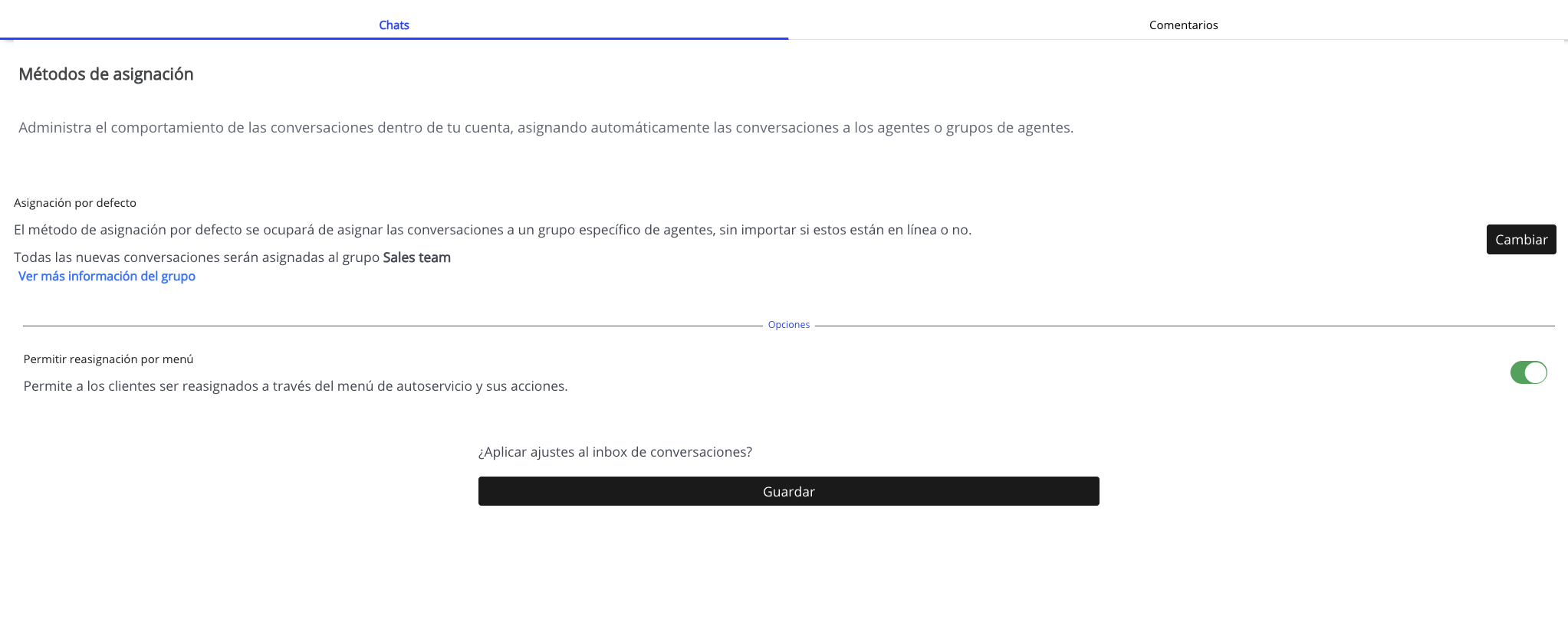
Comments tab configuration
To enable comments assignment:
- Go to the Conversations menu and select the profile icon in the top right corner.
- Enter Account Settings.
- In the side menu, select Conversation Settings.
- Go to the Assignment Methods section.
- Select the Comments tab.
- Choose the assignment strategy you want to apply to comments.
- Save the changes.
Changes are applied to new conversations in less than a minute.
Available strategies for comments
You can choose any of the following methods in the Comments tab:
- Round Robin — distributes comments in rotating order among available agents.
- Workload — assigns the comment to the agent with the fewest active conversations.
- Default Assignment — sends all comments to a specific group of agents.
- Channel Assignment — assigns based on the channel (Instagram or Messenger) without considering availability.
- Last Responder — assigns to the agent who most recently handled that contact.
- Customer Portfolio — assigns based on the portfolio the contact belongs to.
Note: The Manual option is not available for comments.
What happens if you didn’t configure the Comments tab?
If you don’t select a strategy in the Comments tab, incoming comments are not automatically assigned and remain in the queue so any agent can pick them up manually from the inbox. The strategy configured in the Chats tab is not applied as a fallback for comments.
Independent rules per conversation type
Each tab has its own configurable rules:
- Assign only when the agent is online — available in both tabs independently. Useful if comments are asynchronous and don’t require an immediate response.
- Backup assignment — if the main strategy doesn’t find an available agent, the system falls back to the configured backup agent or group.
- Allow reassignment from the menu — available only for Chats; comments do not support manual reassignment.
Compatible channels
Instagram and Messenger (Facebook) are supported for both chats and comments on posts. WhatsApp/WABA, Telegram, WebChat, Email, and SMS are supported for chats, but do not apply to comments. TikTok is supported for chats, and the comments functionality will be available soon.
Use cases
- Separate teams: a sales team handles DMs with workload balancing, while a community management team receives all comments through default assignment to their group.
- Differentiation by availability: require chat agents to be online to handle conversations, but allow comments to be assigned even if the agent is temporarily offline (since these are more asynchronous conversations).
- High volume from campaigns: when an advertising campaign generates many comments, you can use Round Robin only for comments without overloading the chat queue.
Important considerations
- If all assigned agents are offline and you have the “only when online” option enabled, comments will remain Unassigned until an agent is available.
- This functionality requires at least one Instagram or Messenger channel connected and active.
- Only users with the Administrator role can access and modify this configuration.
- This functionality must be enabled in your account. If you don’t see it available, check with your Reach executive.